
So you want to Claude Cowork the Legal Plugin?: A Guide

Update: There's now a PDF guide covering the first part of this blog post. Feel free to share it!
Legal Tech LinkedIn went nuts lately when they noticed Anthropic's legal plugin tucked away in their "knowledge workers" repository. The markets also took notice as many "traditional" legal tech vendors saw their stock prices drop, including Thomson Reuters which saw a drop of 16% in a single day.
So is this panic justified? Is this the end of the world for legal tech now that Anthropic has eaten their lunch?
Here's what no one's talking about: the plugin is open source. You can look inside. You can modify it. You can make it work for your purposes and jurisdiction.
The templates it ships with are US/EU-centric. For a Singapore or any other practitioner, that's a starting point, not a solution.
I spent the weekend actually using it. This guide walks you through getting it running, then shows you how to create your first custom template: a PDPA-specific data subject access request response. No coding required—just markdown files you can read and edit.
A primer on Claude Cowork and Plugins
Let's set the stage first.
Claude Cowork is Anthropic's desktop application for running AI-powered workflows. Think of it as Claude with superpowers: it can read files on your computer, execute multi-step tasks, and work with specialized plugins.
Plugins are pre-built skill packages that teach Claude how to do specific jobs. Anthropic released 11 open-source plugins covering areas like sales, marketing, finance, and—most relevant to us—legal work.
The legal plugin gives you five slash commands:
/review-contract— clause-by-clause review against your playbook/triage-nda— quick categorization: auto-approve, review, or escalate/vendor-check— status check on vendor agreements/brief— daily briefings, topic research, incident response prep/respond— templated responses for DSARs, legal holds, common inquiries
For solo counsels and small teams, these commands offer a new way to use AI without specialized tools or enterprise platforms.
What you'll need
Time required: 30-45 minutes for setup; about 2-2.5 hours to follow the full walkthrough including validation and branding
What you'll need:
- A computer running macOS or Windows
- A Claude Pro, Team, or Enterprise subscription ($20/month for Pro)
- Some familiarity with creating folders and editing text files
Don't be daunted by that last requirement. The customizations are in plain text, not code. If you can find your way around your computer, you can customize these skills.
A note before you start
I'm skeptical about Cowork as a daily workflow tool. Integration friction (copy-paste between systems) and data security concerns make it impractical for confidential legal work. Use public documents only (like the VIMA NDA in this guide) until you've completed your organization's vendor assessment for Anthropic.
But the meta-prompting techniques you'll learn here—creating reusable instruction sets that guide AI behavior—apply beyond Cowork. These patterns work in Claude Code, API implementations, and other tools that adopt similar approaches.
The trade-off with Vendor tools
Vendor tools like Harvey or CoCounsel come with enterprise support, compliance teams, and predetermined workflows. Custom skills and templates require more self-reliance but give you control over the decision-making logic. For solo counsels and small teams working on internal processes, custom approaches are manageable. For client-facing work requiring compliance certification, vendor tools often make more sense—at least until you build confidence on lower-risk tasks.
That's what makes this worth your time: learning how to program your own systems, not just work within someone else's.
Step 1: Install Claude Cowork
1.1 Go to and download the desktop app for your operating system (macOS or Windows).
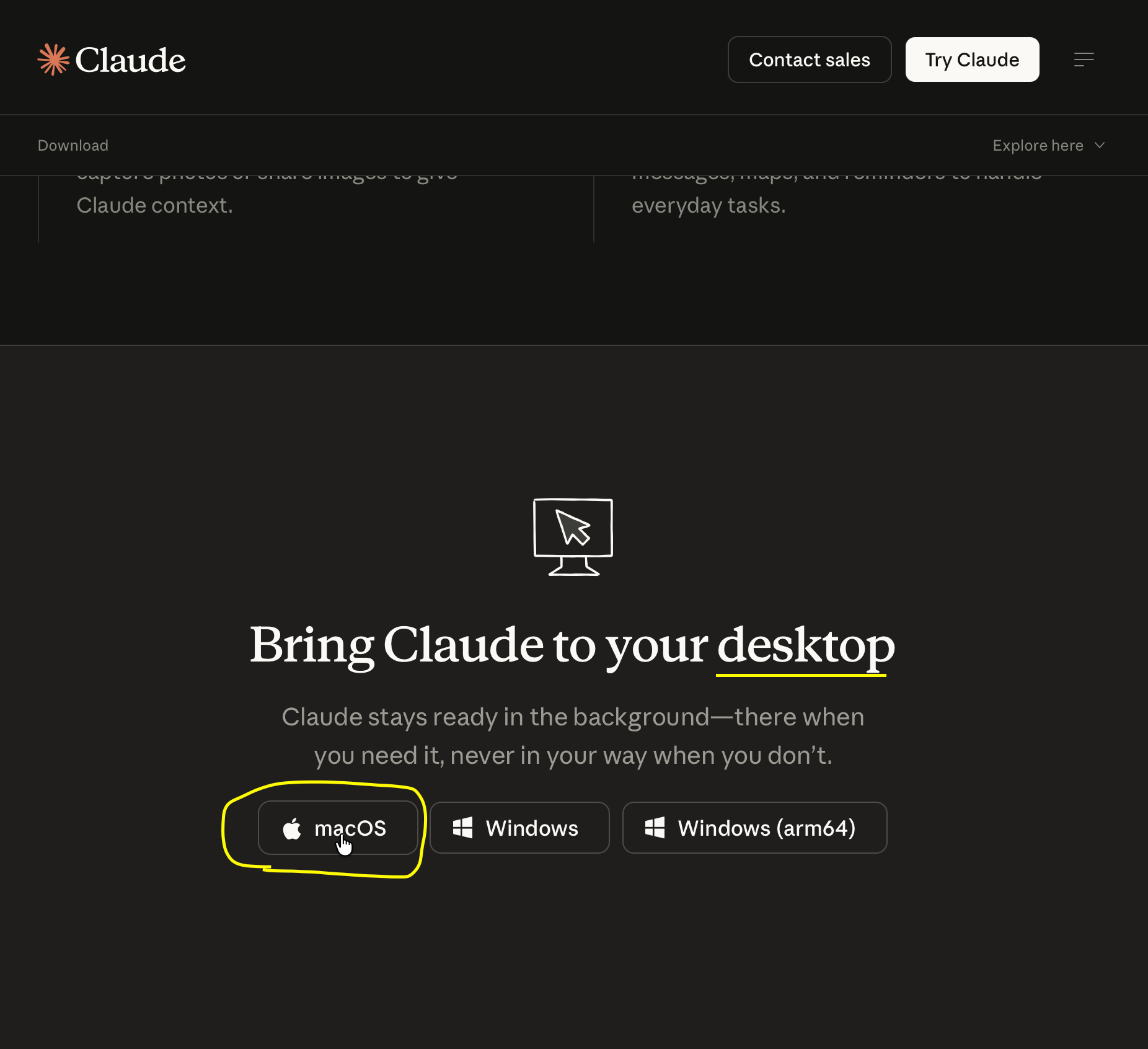
1.2 Install the application:
- macOS: Open the .dmg file and dragging Claude to your Applications folder.
- Windows: Run the .exe installer and follow the installation prompts
1.3 Open Claude and sign in with your account. You need a Pro, Team, or Enterprise subscription—Cowork isn't available on the free tier.
1.4 Once signed in, you'll see three tabs at the top: Chat, Cowork and Code. Click Cowork.
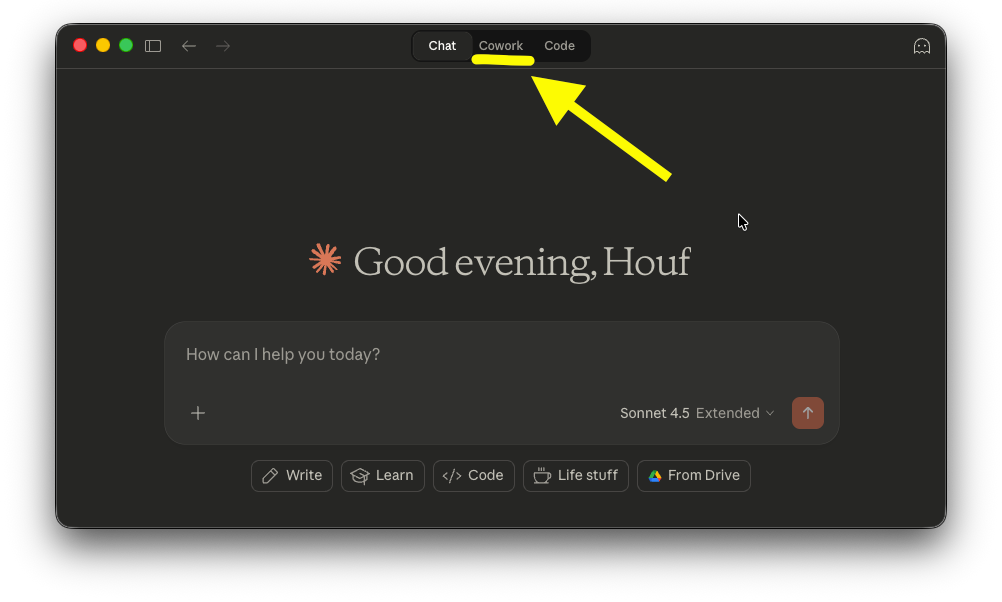
If you've set up your account and followed the steps above, you'll arrive at this interface:
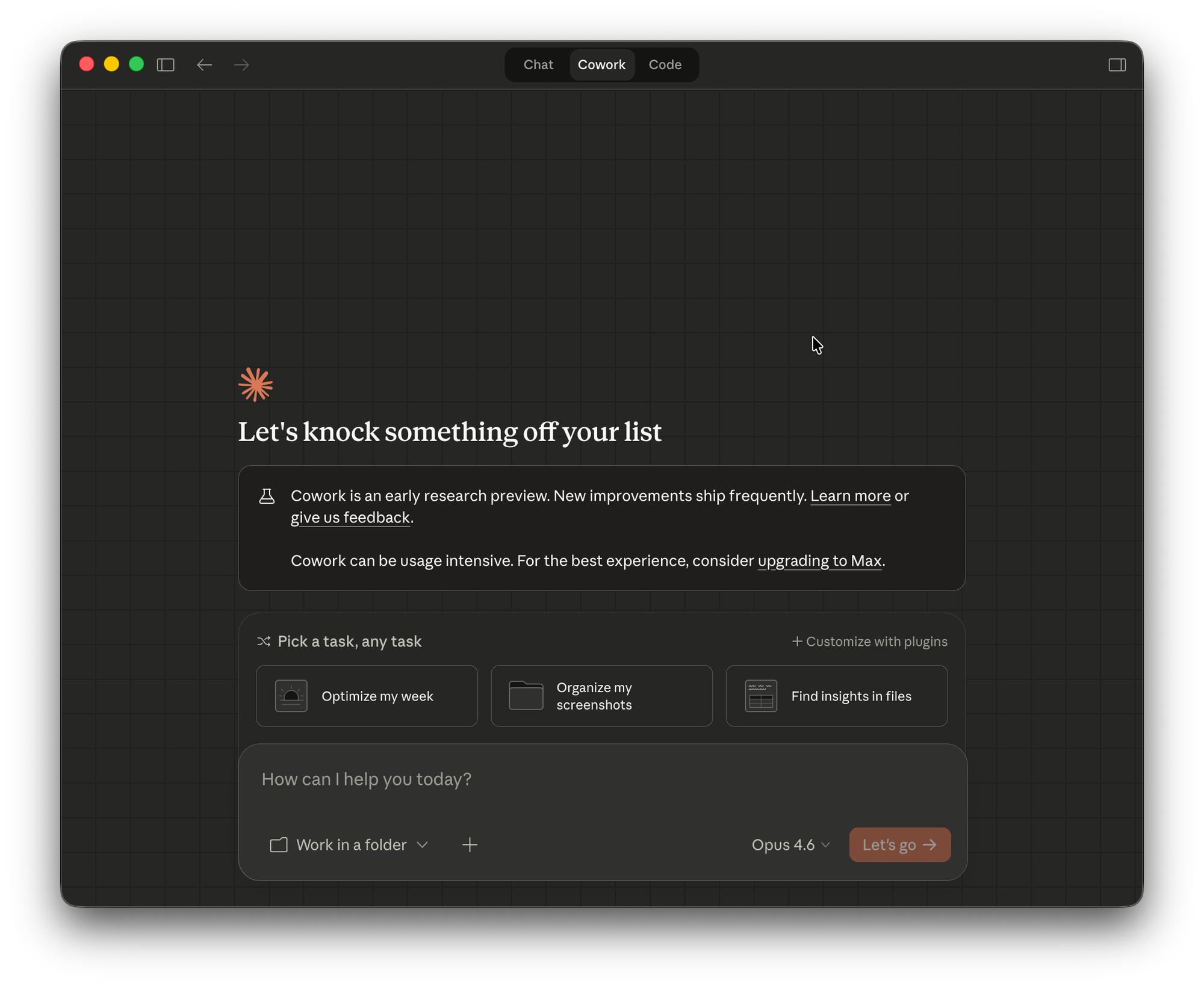
Step 2: Install the Legal Plugin
There are several ways to install plugins (including via terminal), but let's use the quickest method.
2.1 In Cowork, click on the + Customize with plugins button.
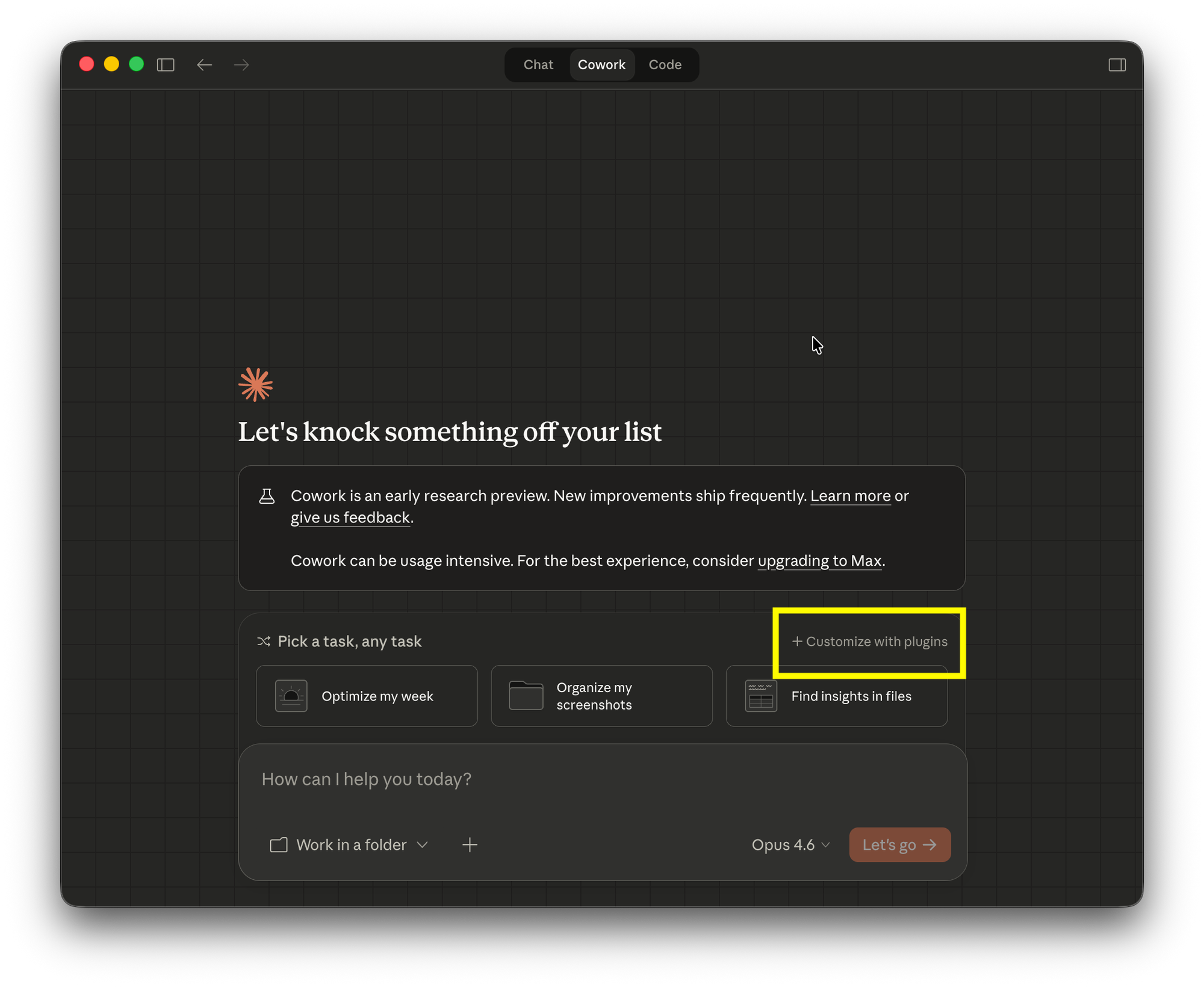
2.2 You'll see the plugin marketplace. Find Legal in the list and click Install.
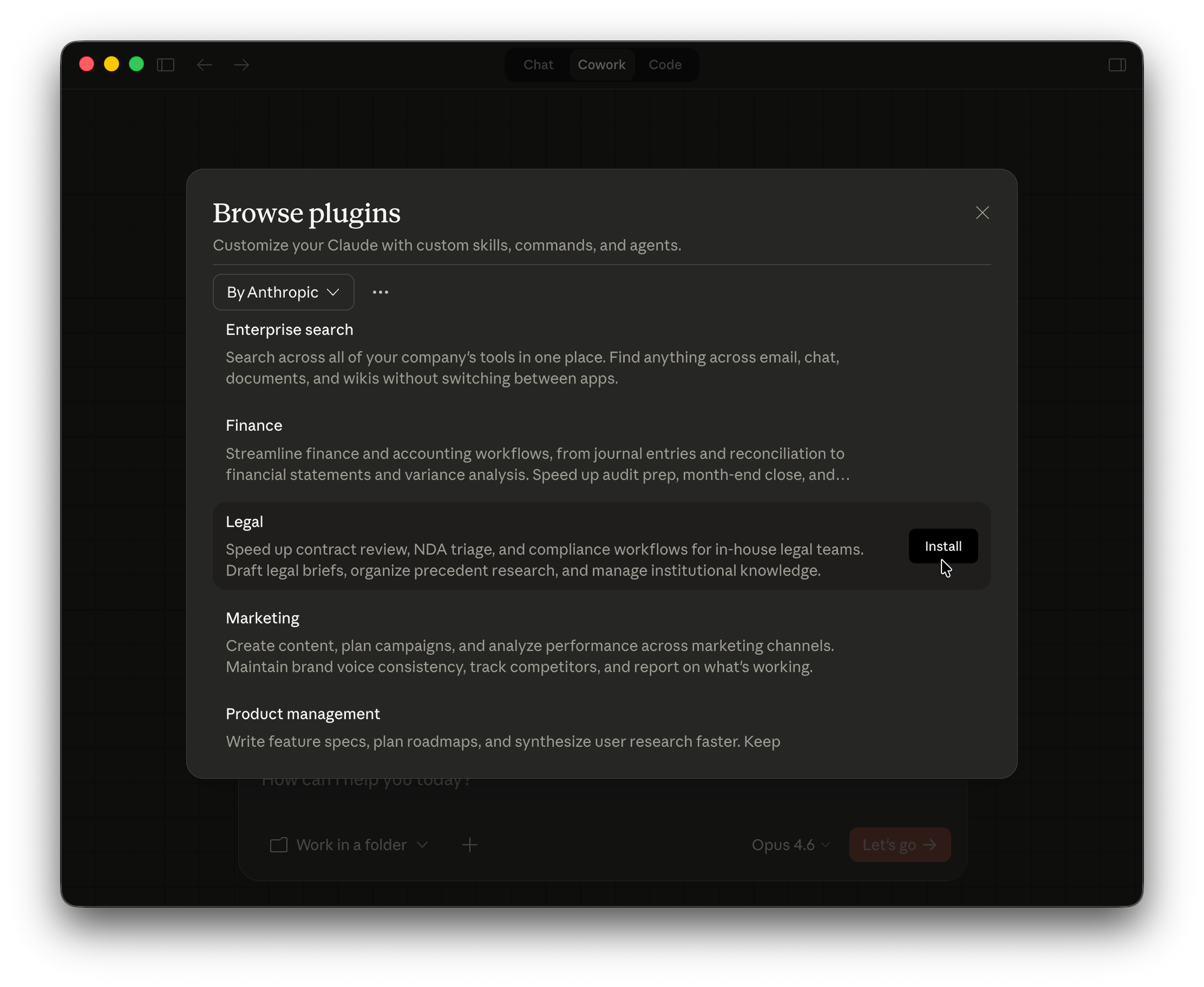
2.3 The plugin will download and activate automatically. You should see a confirmation message.
2.4 When you return to the Cowork screen, you should see the available legal commands:
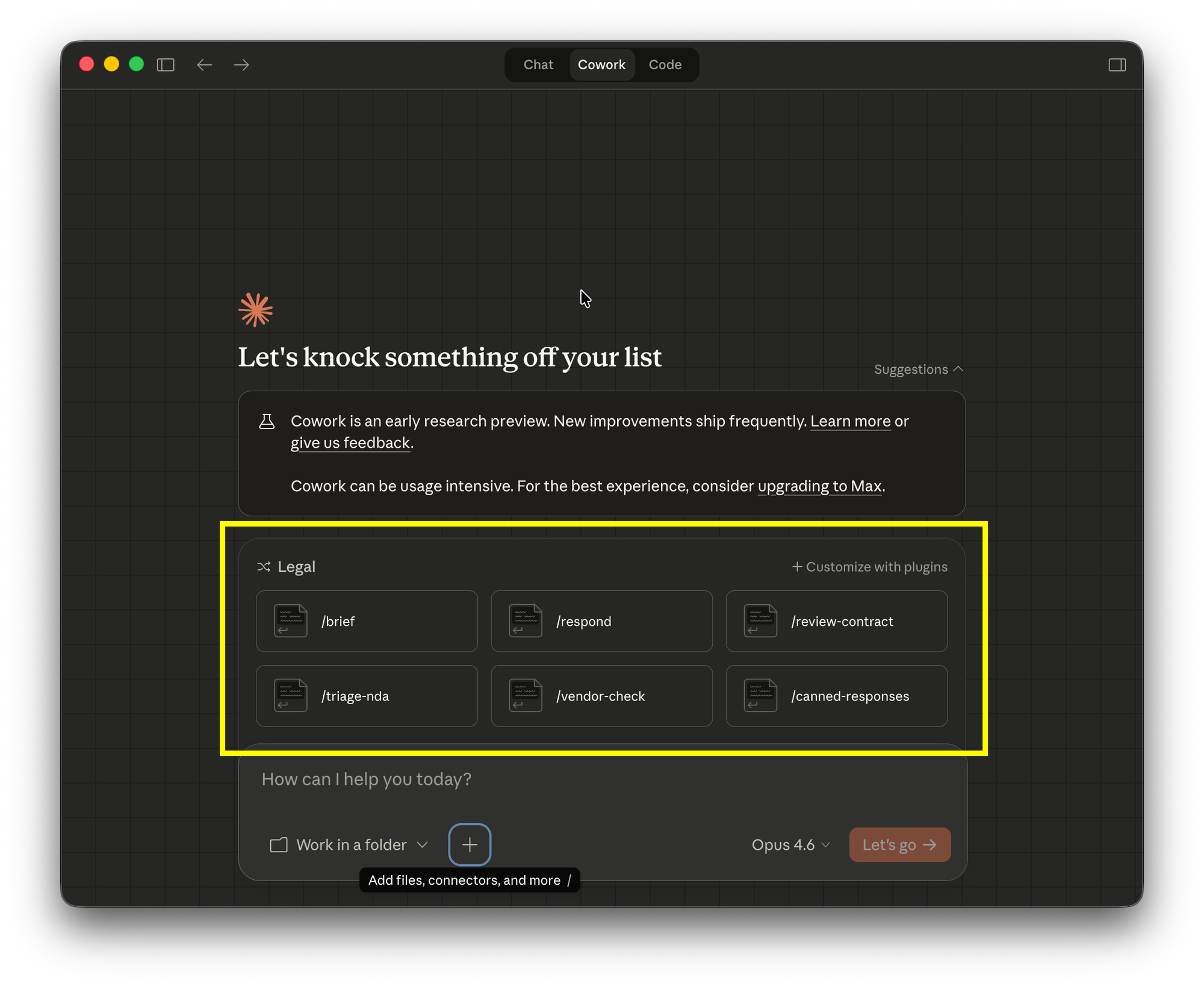
You now have Cowork with the legal plugin enabled.
Step 3: Quick Demo - NDA Review
Before we customize anything, let's see what the plugin does out of the box.
3.1 Download the VIMA 2.0 Model Non-Disclosure Agreement to your computer (probably your Downloads folder).
3.2 In Cowork, click the + button next to Work in a folder and add the NDA file to your session.
3.3 Type this command:
/review-contract Review this NDA.You should see the /review-contract command highlighted. Click Let's Go.
It may take a while to process, but Claude will deliver a risk assessment with warnings and negotiation priorities.
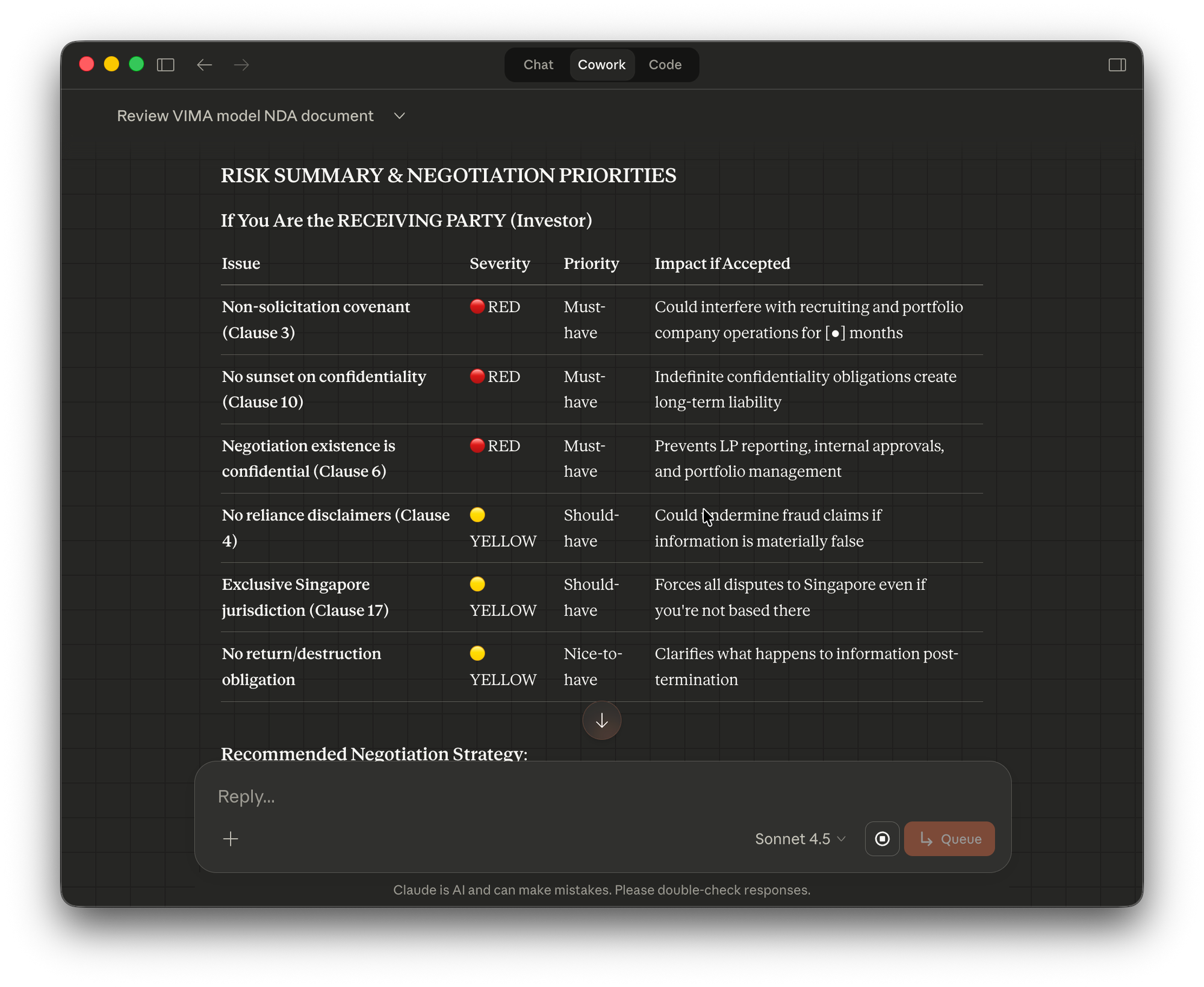
That's useful. But it's generic advice—the kind you'd get from Claude chat. The real value comes from customization.
Customizing for Your Jurisdiction: PDPA DSAR Template
Here's where it gets interesting. The plugin ships with templates for common legal tasks, but they're built for US/EU contexts. If you work in Singapore, you need PDPA-compliant responses, not GDPR templates.